Loading multiple Point Cloud files with MicroSurvey CAD
*Note: with recent changes made to Cyclone, This now only works when using Cyclone version 9.2.0 and was last tested using MicroSurveyCAD 2019
While importing a Point Cloud file into Cyclone is a fairly easy to follow procedure, it is not entirely intuitive how to load multiple files into the same database. The steps below aim to illuminate the procedure.
- Open MSCAD and load the drawing where you wish to import the Point Cloud into
- From the PointCloud ribbon tab select Import Cyclone to establish the Cyclone connection, then close the dialog
- Launch the Cyclone Viewer from: Windows - All Programs
- Right-click on the (unshared) server under SERVERS and select Databases...:

- Click Add to make a new database:

- Enter a name for the database, then click OK:

- Click Close then right-click on the new database and select Import:

- Browse to the location of your Point Cloud files and select the first file to Open:

- Click on the "+" sign next to your Database name to expand it, then right-click on ModelSpace 1 and select Import:

- Browse to the location of your Point Cloud files and select the next file to Open
- Repeat Step 10 as required
- Switch to MSCAD, and again from the PointCloud ribbon tab select Import Cyclone:

- Browse for the Point Source:

- Click on the "+" sign to expand your database until you get to the ModelSpace 1 of your data set
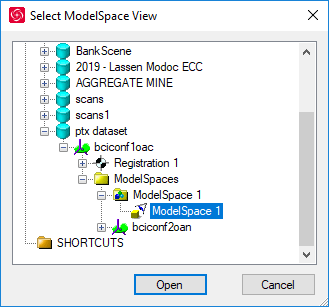
- Select ModelSpace 1
- Click Open and then OK to load the points from first imported file
- Repeat steps 14-16 as required to import the next file
See all the Pointcloud training Movies at this page
Jacob Wall
Comments