Leica Zeno with FieldGenius for Android:
NOTES:
With the release of FieldGenius 3.2 and newer versions, Zeno Connect is now supported on both Android and Windows operating systems. See this video on that setup. Follow the guide below ONLY if you are using versions 3.0 and 3.1 of FieldGenius.
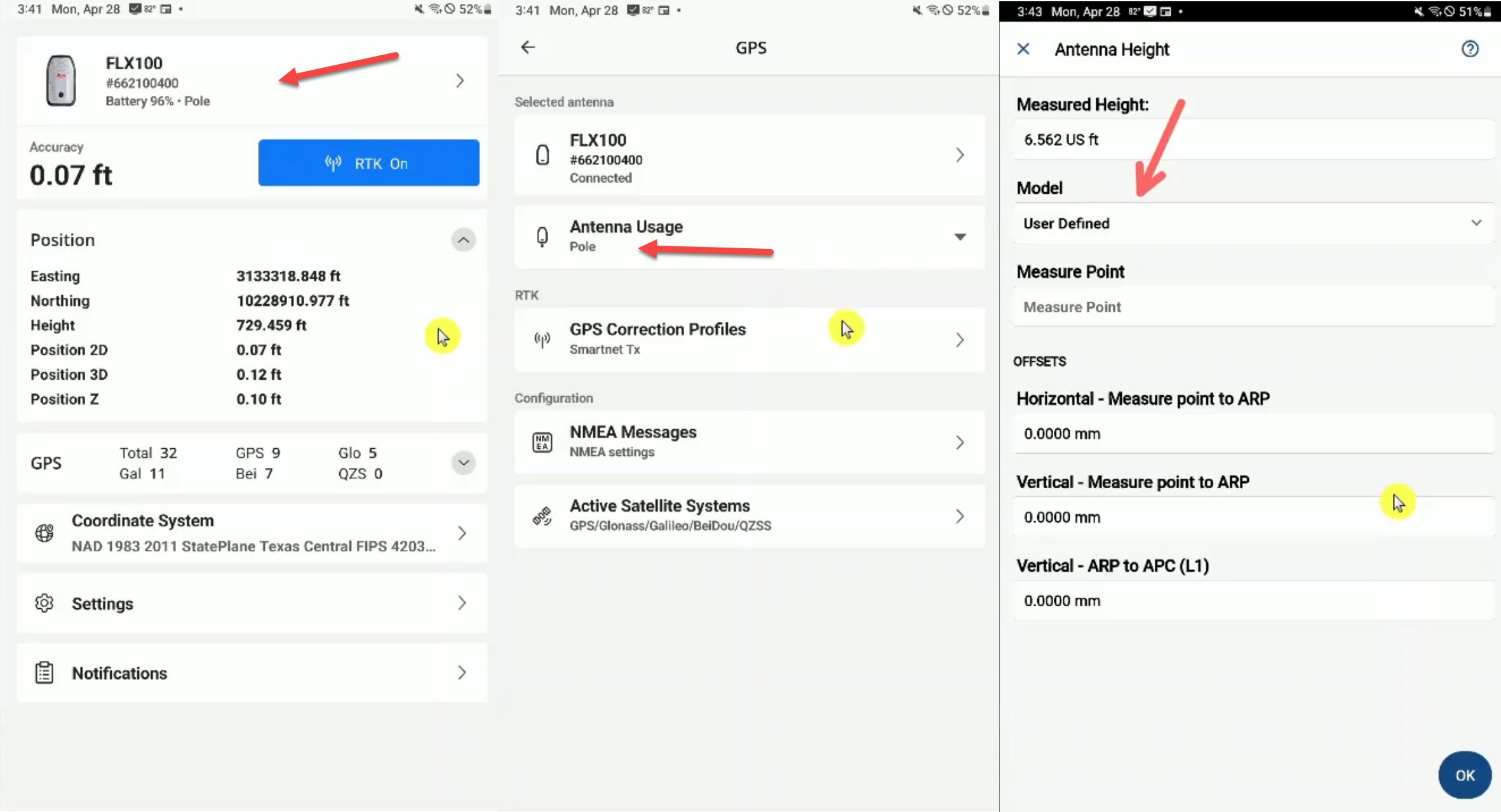
Some receivers will have different Antenna options when connected in Zeno Connect. These Antenna options may apply offsets to the antenna height when combined with the built in antenna offsets within FieldGenius. So make sure to take note of what is selected from the info below, so that antenna offsets are not applied twice. (once from Zeno Connect, once from FieldGenius)
Leica FLX 100
With the Leica FLX 100, you want to select Pole as the Antenna Usage in Zeno Connect. This will apply the antenna offsets to the height within Zeno Connect. Then, in FieldGenius, make sure the Antenna Height is set using the User Defined model, so that the offsets values are all 0, since they are already applied in Zeno Connect.
James Johnston
Comments