The Leica Zeno range of devices are popular for use with MicroSurvey FieldGenius for Windows and Android. See below for configuration information:
Leica Zeno with FieldGenius for Windows:
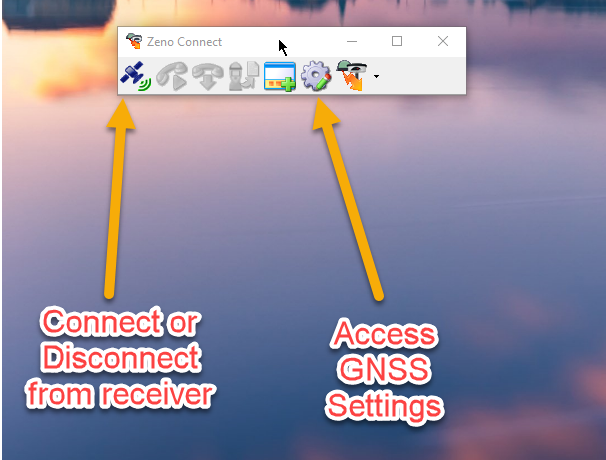
There is a range of devices distributed by Leica which are used primarily for GIS data collection. FieldGenius can be configured to connect with these devices. The utility "Zeno Connect" will be required to configure the communications properly. Here are the steps to follow:
Steps to Follow in Zeno Connect:
- Run Zeno Connect on your device
- Connect to the GNSS Receiver (if it is an external device)
- in the Antenna Settings tab of the GNSS Settings select the device you would like FieldGenius to connect to:

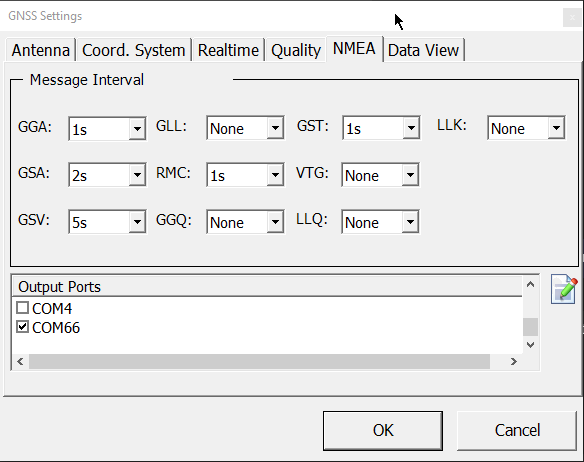
- Switch to the NMEA tab and configure the message interval settings as shown below. NOTE: Leave the NMEA tab to what comes up by default if the 1s intervals prove problematic.
- Assign Com66 as the output port:
- NOTE: Zeno Connect must be left running in the background in order for a successful connection to be established in FieldGenius
Steps to Follow in FieldGenius:
- Run FieldGenius
- Open the FG Sample or start a new project
- When you see the "Instrument Selection" dialog select the "GNSS Rover" radio button
- Pick Add, type a name for the profile you are creating and pick Save
- Pick Edit
- Pick on "Active Tolerance" and set it to "Autonomous" (this will simplify testing)
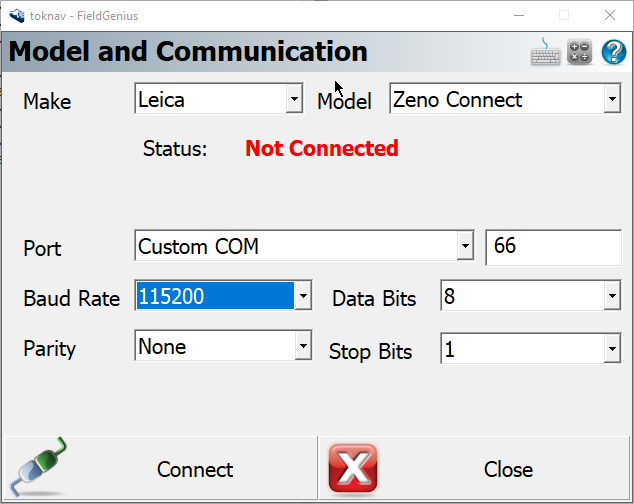
- Pick Model and Communication and configure all options as below
- Set the Port value to COM66 as shown
- Pick "Connect" to test. You're finished.
IMPORTANT NOTE: Caution field users that they must not modify the Zeno profile while running FieldGenius, or it will not be able to connect until the above steps are repeated.
Other Information:
- While Zeno connect can report a wide range of NMEA message types, the FieldGenius NMEA driver only supports a narrow range of NMEA messages. All unsupported messages will simply be ignored by the software. See this article for more details.
- FieldGenius reads only the Latitude, Longitude and Ellipsoid height from the GNSS receiver, so any coordinate system or geoid height definitions must be entered in FieldGenius.
- See this section of the FieldGenius movies page to see how to use FieldGenius for GIS data collection.
James Johnston
Comments