This article series will go over all the details needed for you to learn how to use and manage your licenses, all in one place. You can skip ahead to any other section from the links below as needed:
| Account Creation | Account Login | License Portal | Downloads |
| Licenses & Activations | Renewals & Upgrades | Product Registration | Adding new Licenses |
| Desktop Licenses | FieldGenius Licenses |
Licenses & Activations
This is where you can view the list of licenses under your account.
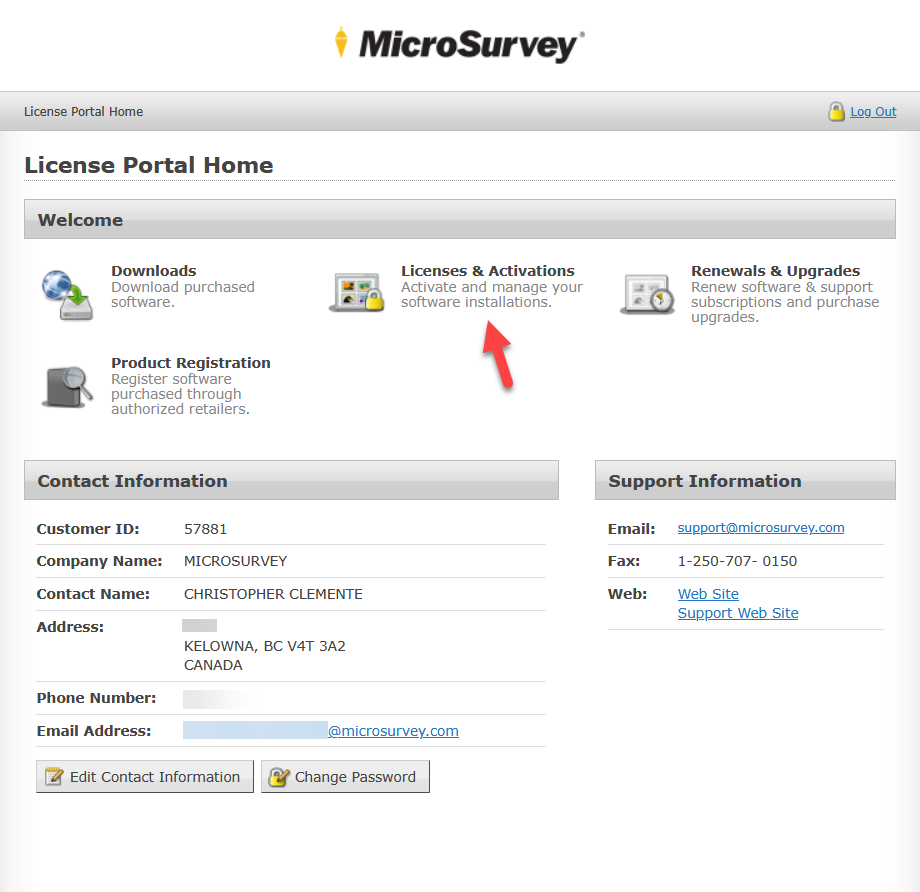
While here, you can also at a glance see which product each license is for, when it was issued, the current status & expiration date of the maintenance, and how many activations it has left.
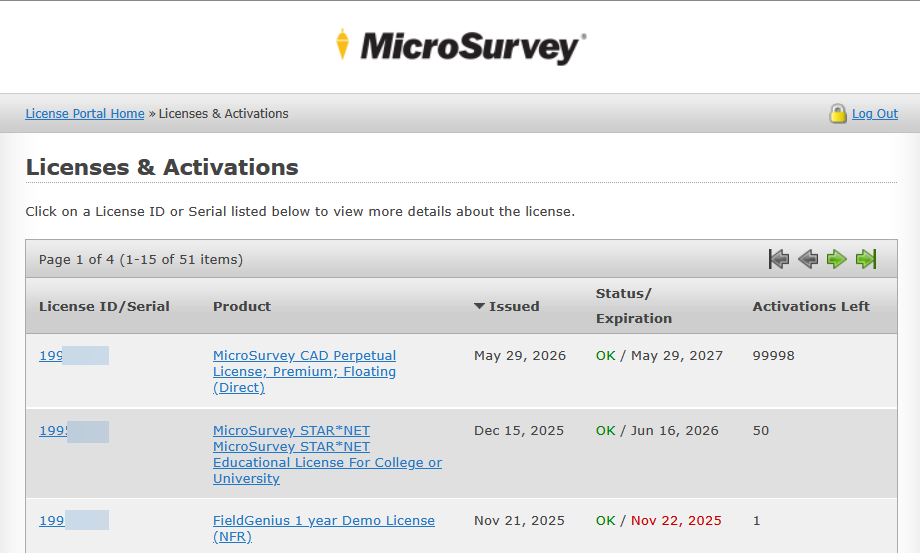
Selecting one of your licenses will give you more details about that particular license, such as the License ID and Password for activating it, how many deactivations are left as well some other info already mentioned from the previous screen above.
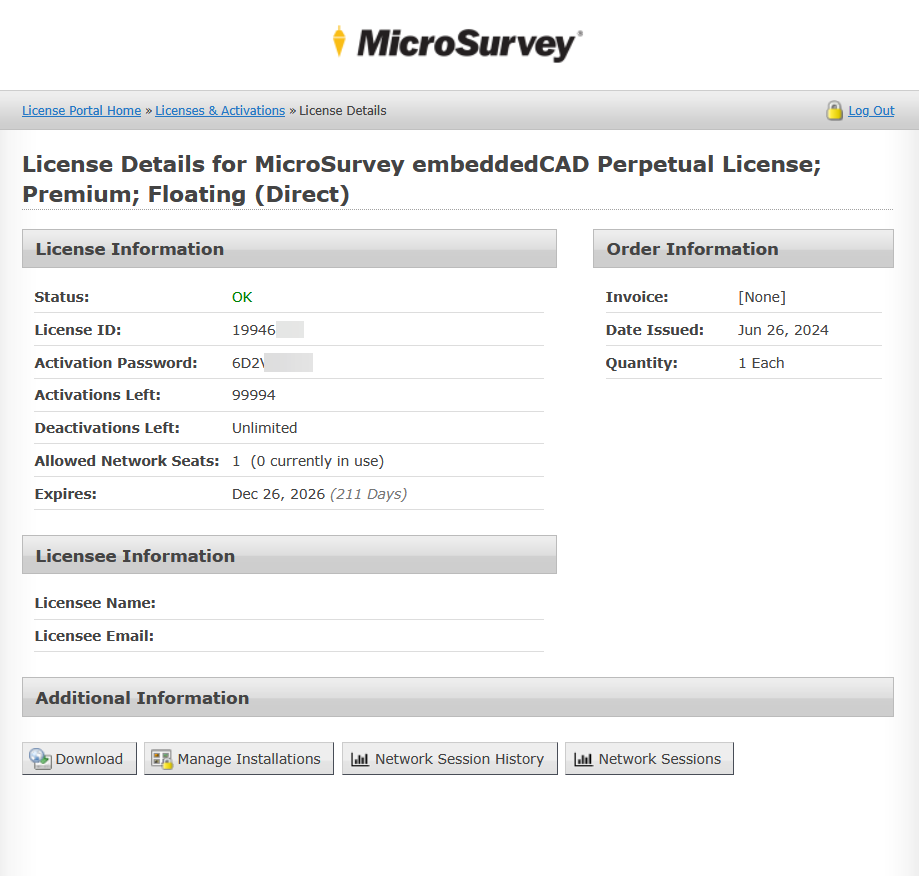
Additional Information
Within Licenses & Activations > License, there are some handy additional functions you can access, depending on the conditions of your license:
- Download - This downloads the latest version of the product for which this license is for. Similar to the Downloads section, if the license has its maintenance expired, this button will be greyed out.
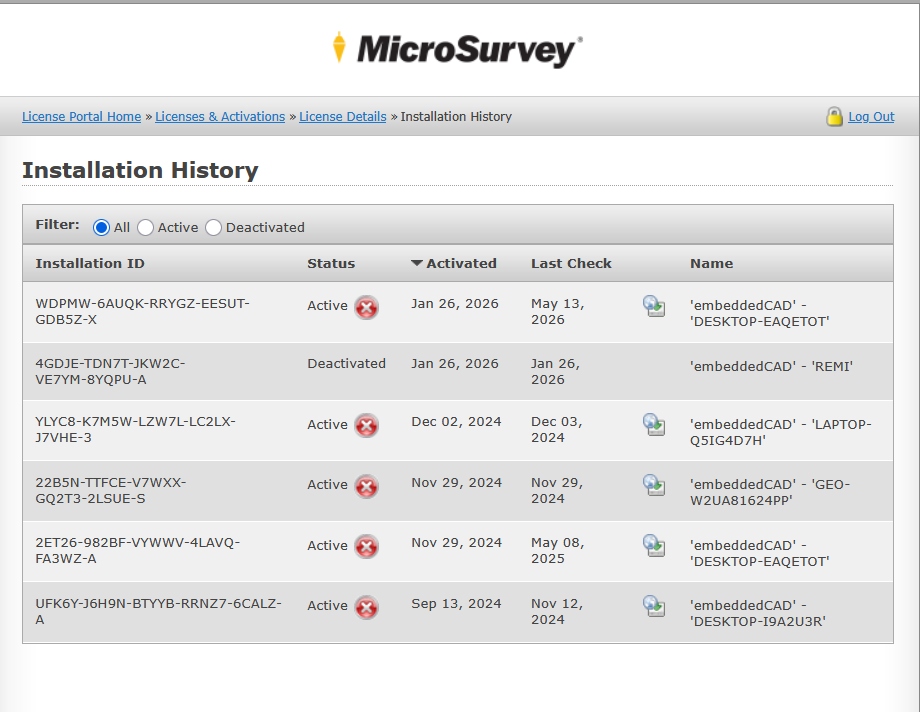
- Manage Installations - This will list all the computers who have activated this license. If you have any deactivations left, a red (X) button will be available for that particular activation. Pressing this will deactivate the license from that computer, which is useful in cases where maybe somebody left their program running before leaving, holding up a license seat that is needed elsewhere.
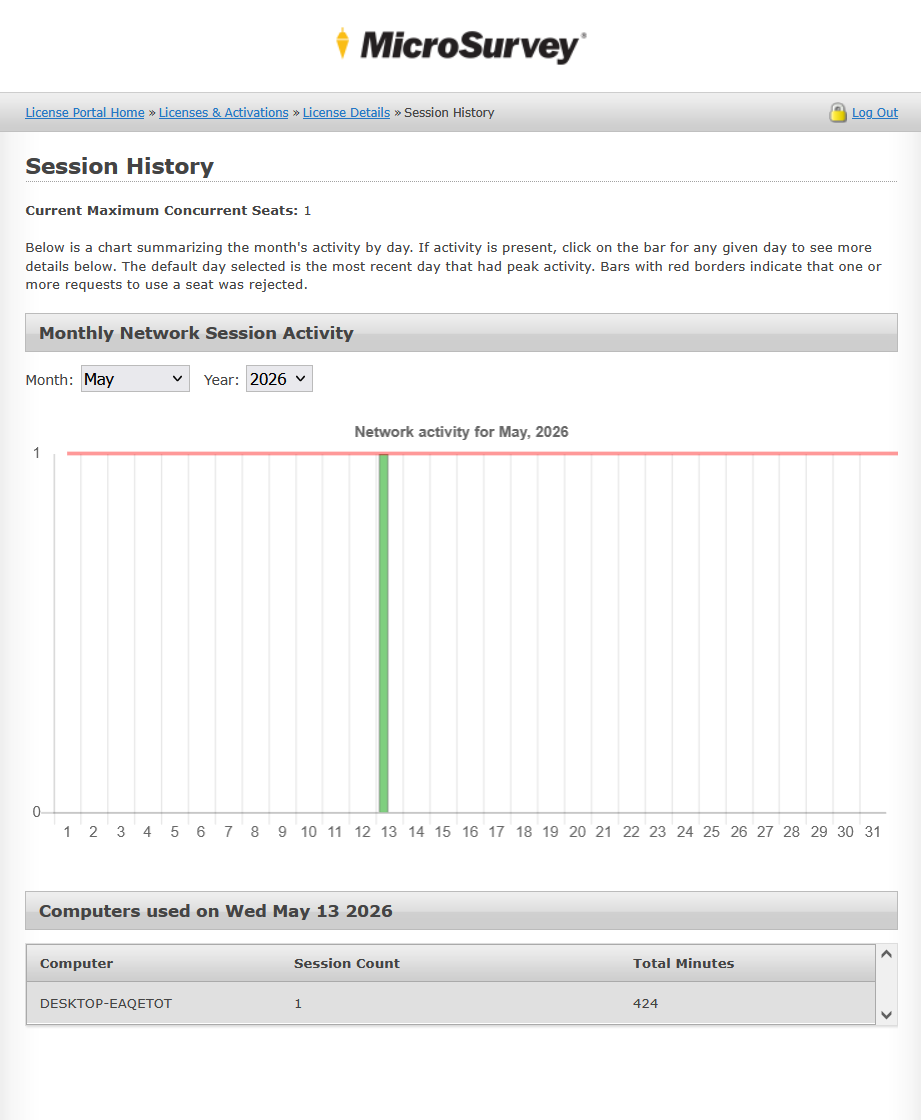
- Network Session History - If your licenses is a Floating type, this button will be available. Shown here will be the history of which computers have used the license, when and for how long.
-
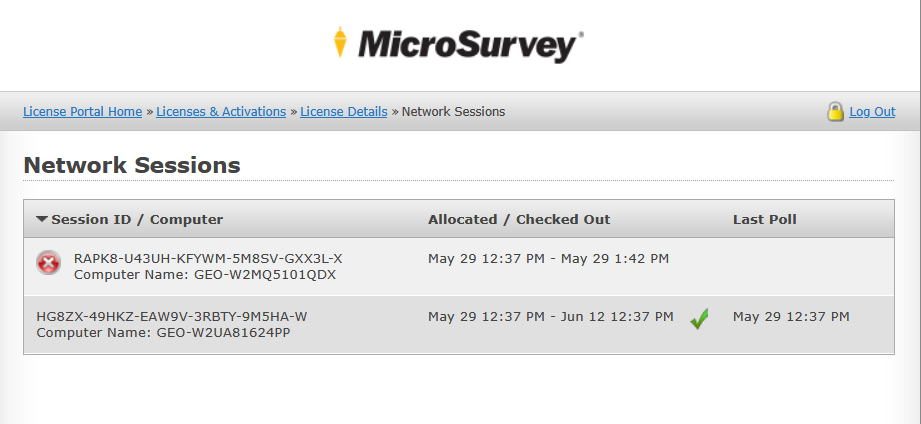
Network Sessions - If your licenses is a Floating type, this button will be available. Shown here are the current computers actively using this license. You can press the red (X) button to force close any active sessions. But if a user has Checked Out a license, that button will not be available. That user needs to Check In the license in order to return the license. Check In and Check Out functions are described in more detail under the Desktop Licenses section.
Chris Clemente
Comments