This article series will go over all the details needed for you to learn how to use and manage your licenses, all in one place. You can skip ahead to any other section from the links below as needed:
| Account Creation | Account Login | License Portal | Downloads |
| Licenses & Activations | Renewals & Upgrades | Product Registration | Adding new Licenses |
| Desktop Licenses | FieldGenius Licenses |
FieldGenius Licenses
For our FieldGenius licenses, the license dialog appears on launch:
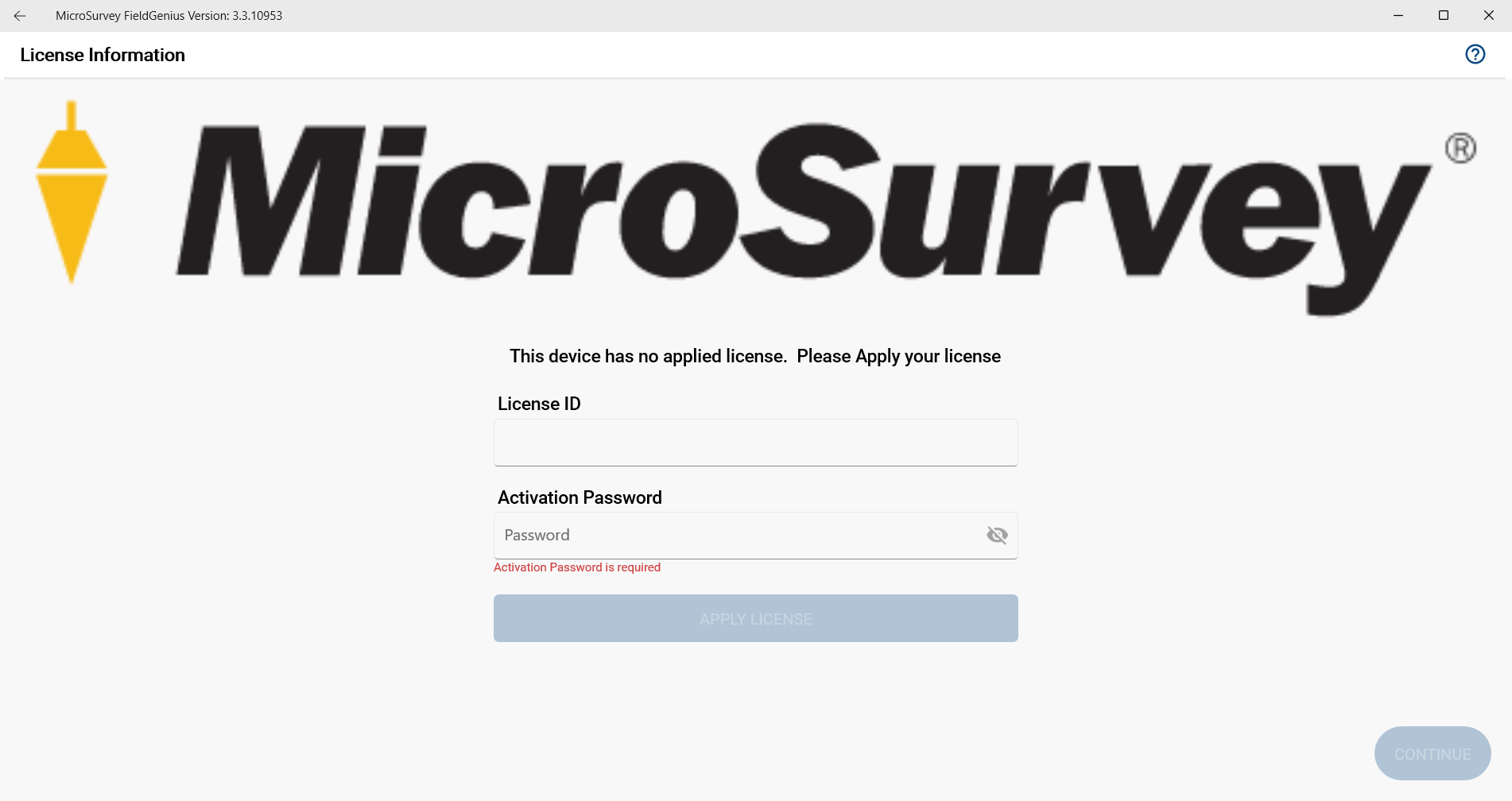
To activate a license for FieldGenius, enter in your License ID and Password, which you can find in your Licenses & Activations. Once entered, press Apply License. You will see your license details listed:
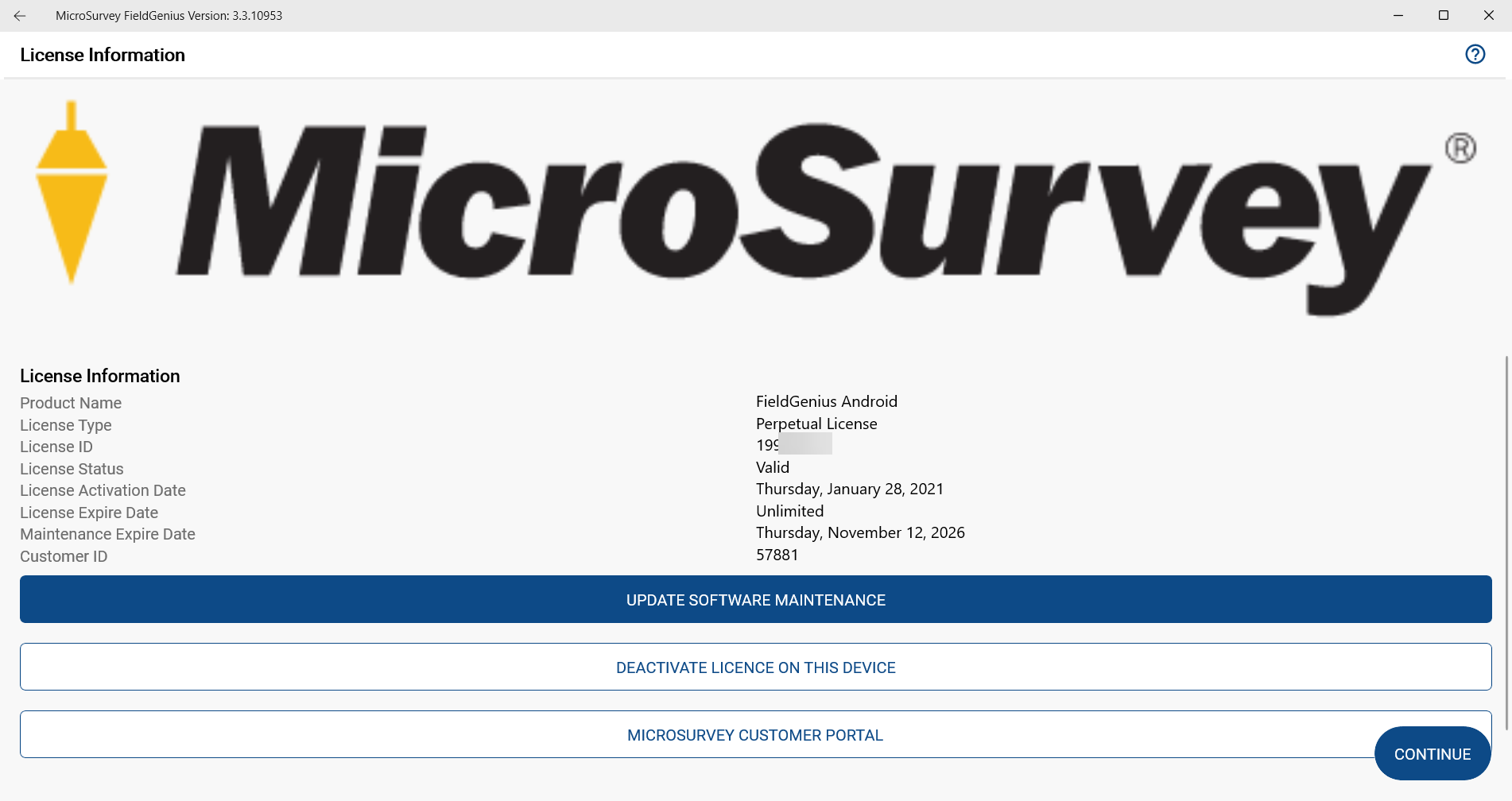
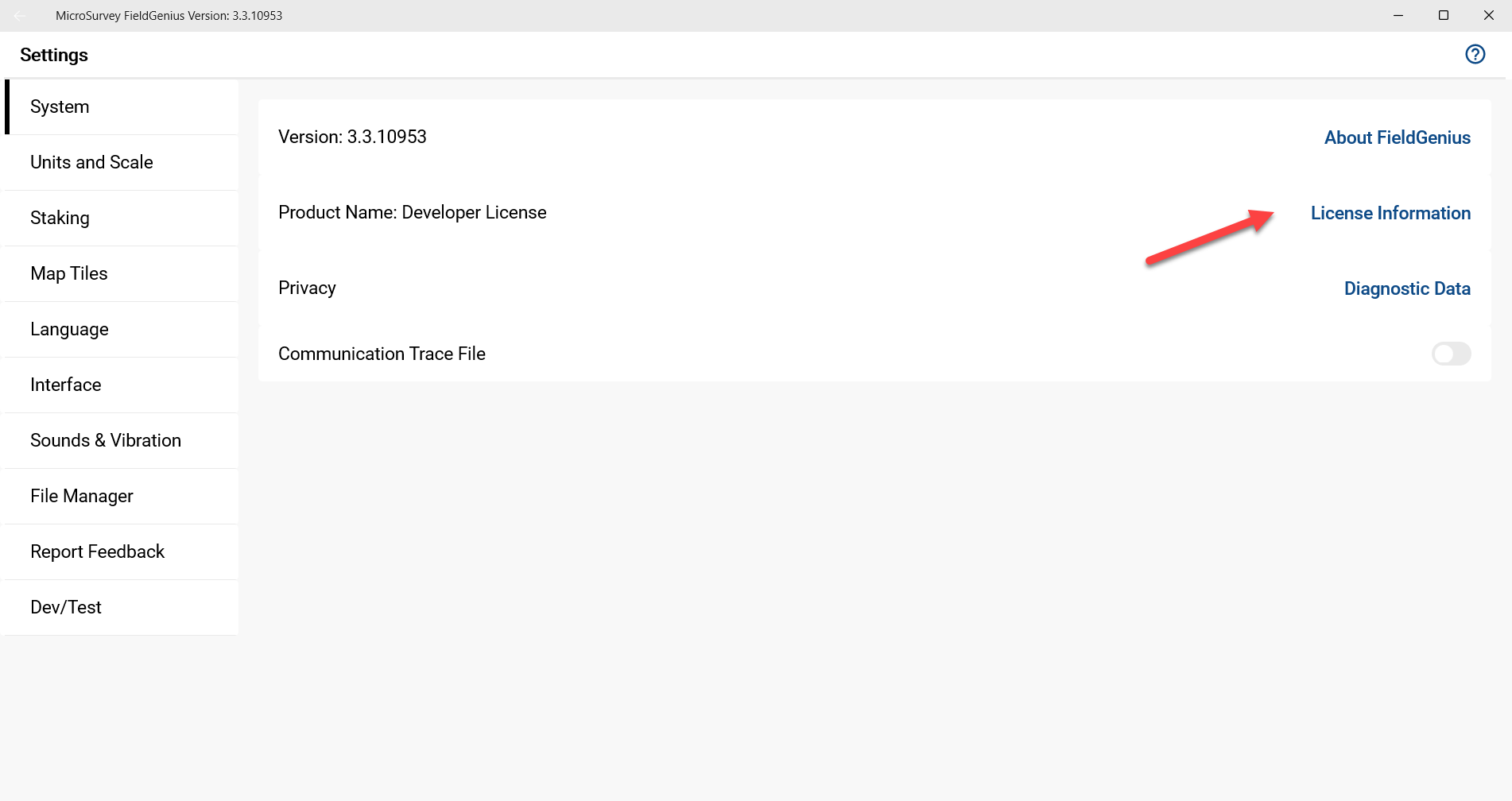
When you next launch the program, the initial license dialog will be skipped. If you need to access it at any point from within the program, you can do so by opening any project and then going under Settings > System > License Information
Below are a few links to related articles:
Deactivating FieldGenius when your Controller is Damaged or Lost
Chris Clemente
Comments