This article series will go over all the details needed for you to learn how to use and manage your licenses, all in one place. You can skip ahead to any other section from the links below as needed:
| Account Creation | Account Login | License Portal | Downloads |
| Licenses & Activations | Renewals & Upgrades | Product Registration | Adding new Licenses |
| Desktop Licenses | FieldGenius Licenses |
Desktop Licenses
For our desktop licenses, which include programs such as MicroSurvey CAD, EmbeddedCAD, InCAD, SurveyTools for BricsCAD and STAR*NET, the license dialog that appears when you launch said program will look like so, after selecting the License ID & Password button:
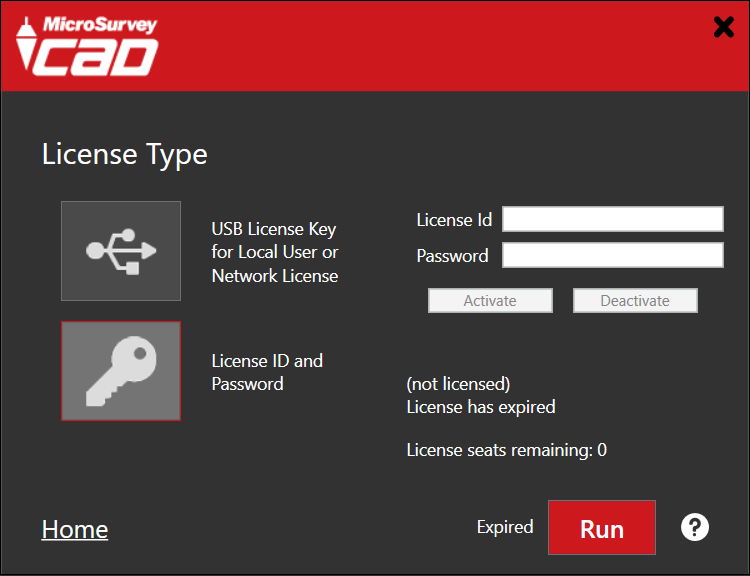
To activate a license for the product, enter in your License ID and Password, which you can find in your Licenses & Activations. Once entered, press Activate. You will see your license details listed:
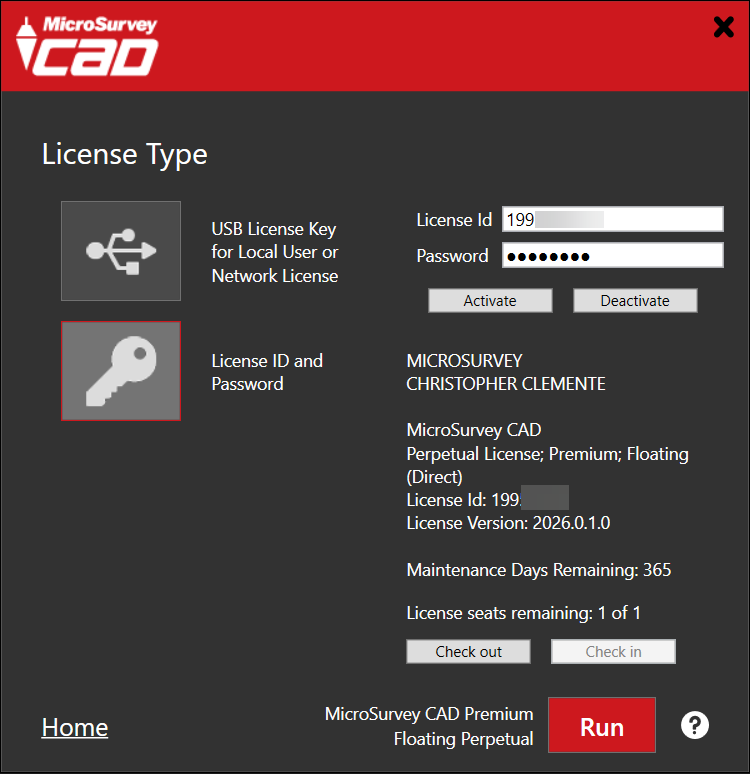
When you launch the program, if it is the only type of license you have, the initial license dialog will be skipped. If you need to access it at any point from within the program, you can do so by going under Help > Activate License.
Check Out/In
Specifically with our Desktop Licenses, we have an option to Check Out/In licenses. This is used if you need to work offline for a set period of time, as this physically moves the license seat from the online server to your local machine. KEEP IN MIND that doing this means nobody else can use that seat until you either check it back in or wait the 14 day checkout period.
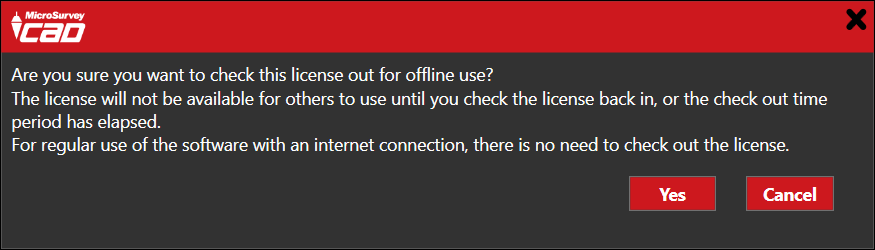
So in order to do this, press the Check Out button. You will get a message explaining what this does:
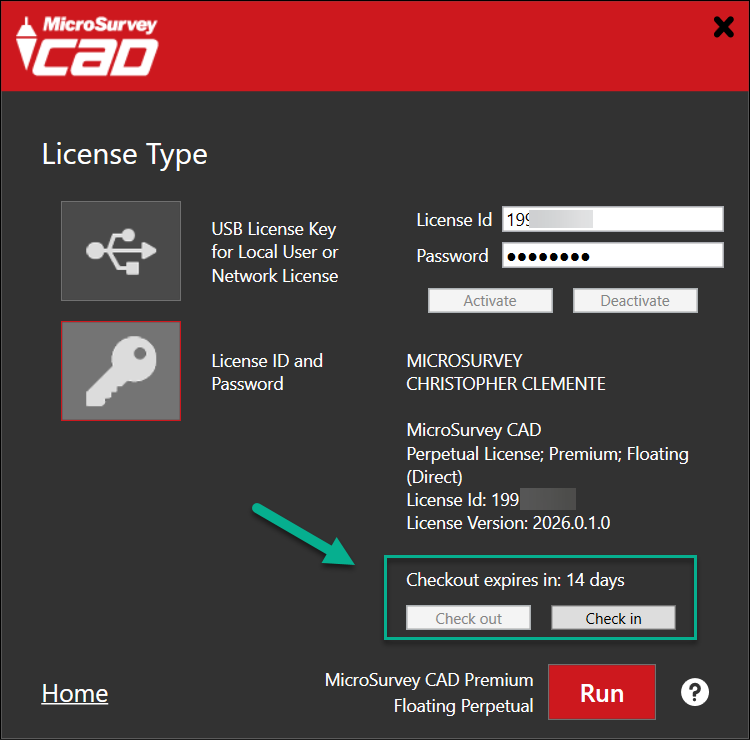
While checked out, you will notice that some info on your license dialog changes a bit at the bottom. It now lists how long it is checked out for, and the Check In button becomes available in case you need to return it before the end of the checkout period.
Chris Clemente
Comments